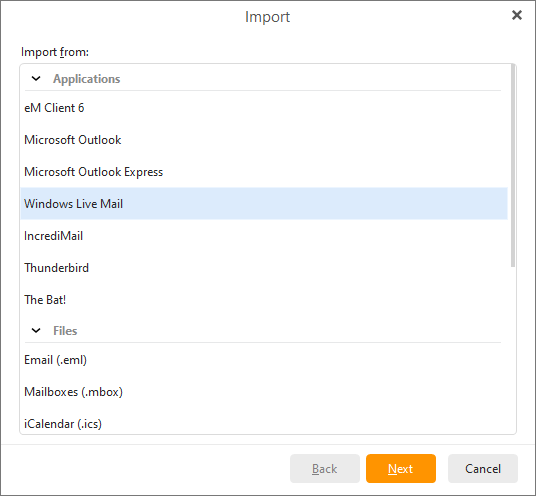
To import your messages from Windows Live Mail click on Menu -> File -> Import
Choose the option Import from Windows Live Mail and click Next.
The Windows Live Mail option will be available if you have WLM installed or it was installed in the past and the files are in the default folders.
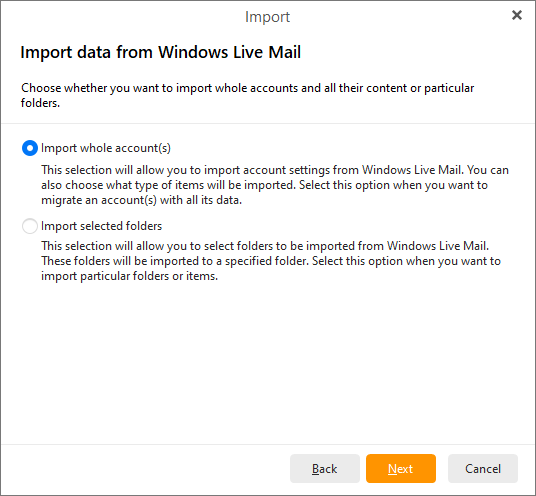
Here you can select either to import whole account(s) or selected folders from Windows Live Mail.
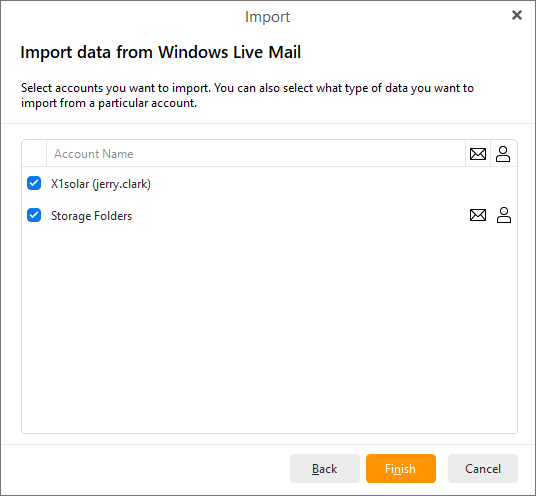
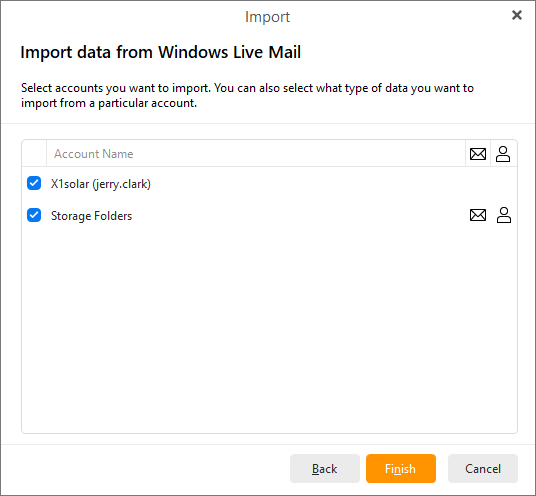
Finally, select accounts you want to import. You can also select what type of data you want to import from particular account.
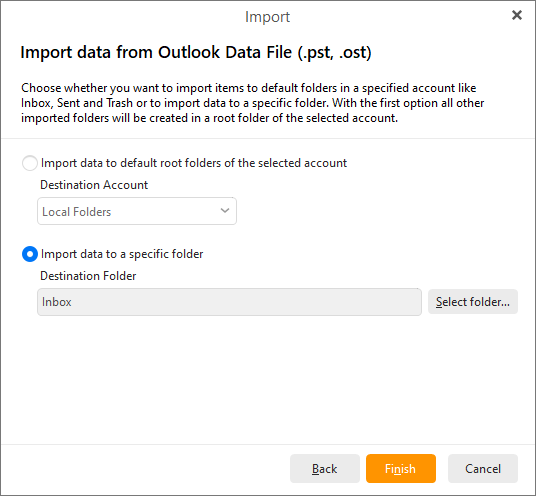
Choose whether you want to import items to default folders in a specified account like Inbox, Sent and Trash or to import data to specific folder. With the first option all other imported folders will be created in a root folder of the selected account.
Click on Next to proceed to the next window.
Here select Windows Live Mail folders you would like to import and then click on the Finish button to finish the process of importing.